# Welcome to CW Suite POS
Centralize the operations of your store, process transactions, manage inventory, follow orders, create reports of the store’s activities and much more!
{% hint style="info" %}
**Our Pro Tip:** CW POS system can eliminate the need to create a separate product catalog by automatically linking with the inventory database. This integration can ensure that the product information and pricing are accurate and up-to-date, while also simplifying the process of adding or removing products from the system.
{% endhint %}
## Overview
Picture this: you're a busy retailer and the queue at your checkout is getting longer by the minute. But instead of getting flustered, you confidently process each transaction in seconds with the help of your trusty POS system. It's not just a computer, it's a powerful tool that helps you manage sales, process payments, and track inventory, all while providing real-time insights into your business performance.
> With a POS system on your side, you can streamline operations, improve customer experiences, and take your business to the next level. POS systems can be utilized for different types of businesses and often include features like inventory management, pricing, and reporting.
## Quick links
{% content-ref url="/pages/C6m2mAKvAcznkoAKKL89" %}
[What CW POS does](/pos/overview/what-cw-pos-does)
{% endcontent-ref %}
{% content-ref url="/pages/4s7Vti0f9C1IhsxbZoUF" %}
[CW POS Features](/pos/overview/cw-pos-features)
{% endcontent-ref %}
## Get Started
We've put together some helpful guides for you to get setup with our product quickly and easily.
{% content-ref url="/pages/632Sdviwk3HgerrvXtdP" %}
[Getting set up](/pos/fundamentals/getting-set-up)
{% endcontent-ref %}
{% content-ref url="/pages/BSEvgW0N9nCeWQcoVFak" %}
[POS Settings](/pos/fundamentals/getting-set-up/pos-settings)
{% endcontent-ref %}
{% content-ref url="/pages/ilRxjVmp1xiRzK8Ce5R4" %}
[Payment Method](/pos/fundamentals/getting-set-up/payment-method)
{% endcontent-ref %}
# What CW POS does
At CW Suite, we specialize in creating a POS System that makes transactions easy and fluent. Our software is designed to provide a seamless and efficient experience for both you and your customers.
## CW POS Overview
Our POS System streamlines the checkout process, allowing your staff to process transactions quickly and accurately. The system is user-friendly, with a simple interface that makes it easy to add products, apply discounts, and process payments. Our software can also be integrated with various payment options, allowing your customers to choose the payment method that works best for them.
# CW POS Features
{% hint style="info" %}
**CW POS tip:** Attention ! With just a few clicks, you can quickly add your new items to your product list by quickly filling up the form or using an import list. This can save your valuable time, allowing you to focus on growing your business and increasing your sales.
{% endhint %}
## Easy Integration
One of the key advantages of our POS system is that it makes integration with other business tools and services easier. Our POS system is designed to seamlessly integrate with a variety of software and hardware, from payment processors to accounting software, e-commerce platforms, and more. By integrating your POS system with other tools and services, you can automate processes, reduce errors, and save time and effort. Plus, with our user-friendly interface and intuitive design, the integration process is straightforward and hassle-free.
## Return & Refund
Our POS System includes a comprehensive return and refund feature, designed to make it easy for businesses to process returns and issue refunds to customers. With this feature, you can easily manage returns and refunds, allowing you to provide exceptional customer service and improve customer satisfaction.
## Sale Type
With this feature, you can offer promotions, sales, and discounts to customers, helping to increase sales and improve customer satisfaction. One of the key benefits of our Sale Type feature is that it offers a range of different sale types, including home delivery, cash and carry, and store pickup. This means that you can create promotions that are tailored to your customers needs and preferences, whether they prefer to shop online, in-store, or a combination of both.
## Discounts
Our Discount feature is an essential tool that helps you create and manage discounts for your customers. With this feature, you can offer discounts based on the amount or percentage of the purchase, helping to increase sales and improve customer satisfaction.
# Get Started
The Get Started screen in CW POS provides access to the key features of Add Product, Manage Stores, and Manage Preferences. With this screen, you can get up and running with CW POS in no time.
## Add Product
"Add Product" feature, allows you to easily add new products to your store's inventory. With just a click, you can input various details such as product name, SKU, description, price, tax rate, image, and link it to your product catalogue.
You can start processing transactions once you have added products to your inventory. The default till serves as a point of sale for your store and can be easily managed and monitored through the CW POS system. This feature allows for easy and efficient sales processing, ensuring that your store can start making sales as soon as possible.
## Manage Stores
With "Manage Stores" feature, you can add new stores and tills, assign users to specific stores and tills, and manage access and permissions for each user. This feature provides a comprehensive overview of your entire store network and enables you to efficiently manage your sales operations from one centralized location.
## Manage Preferences
The "Manage Settings" feature in CW POS allows you to customize and control the settings within your account. This includes setting up tax rates, configuring payment options, managing discounts and promotions, and more. With this feature, you can tailor your point of sale system to meet the specific needs of your business, giving you greater control and flexibility over your sales operations.
# Orders
In CW POS System, an order refers to a request made by a customer to purchase a specific product or service from a store. The POS system records details of each order, including the products ordered, payment method, delivery information, and any other relevant information. This information helps retailers manage customer orders, and fulfill orders in a timely and efficient manner.
# POS Order
* In the POS order window, you can view all orders created in your POS system and you can view payment methods.
* You can also view individual order details, such as customer information, products ordered, and any discounts or promotions applied.
# Sales Errors
In the Sales Errors window, you can view all errors that occur during the sales process, such as invalid payments or incorrect item quantities. This allows you to quickly identify and resolve any issues to ensure smooth and accurate transactions
# POS Log
In the POS system, you can view logs of all transactions, errors, and other activities in the POS Log window. This can help you keep track of any issues or discrepancies that may arise during daily operations.
# Reports
Reports refer to the summary and analysis of various data collected from transactions, sales, inventory, customers, and employees. These reports provide valuable insights into the performance of the business, such as top-selling products, profit margins, stock levels, and customer buying behavior. POS reports are useful for decision-making, identifying areas for improvement, and monitoring business growth.
# Sales By Product Report
Sales by Product Report is a report generated by CW POS that shows the sales performance of products in a particular store or across multiple stores. The report typically includes the following columns:
* Store: The store(s) where the products were sold
* Product Category: The category to which the product belongs
* SKU: The Stock Keeping Unit (SKU) or unique identifier for the product
* Product: The name or description of the product
* QTY: The total quantity of the product sold
* Sales: The total sales amount generated by the product
The report can be filtered by date range and can provide valuable insights into the performance of individual products or product categories, helping retailers identify their best and worst performing products and make informed decisions about inventory management and marketing strategies.
# Sales By Product Category Report
The Sales By Product Category Report in CW POS provides a summary of sales performance by product category. It typically includes the following columns:
* Store: The location where the products were sold.
* Parent Product Category: The higher-level product category that the product belongs to (if applicable).
* Product Category: The specific product category that the product belongs to.
* Sold QTY: The total quantity of the product sold in the given time period.
* Total Amount: The total sales amount generated by the product category in the given time period.
This report is useful for understanding the sales trends and performance of different product categories across stores, and can help identify areas of strength or areas for improvement.
# Sales By Customer Report
The Sales By Customer Report in CW POS is a report that provides insights into the sales generated by each customer. The report contains the following columns:
* Store: The store from which the sale was made
* Customer: The name of the customer
* Mobile Number: The mobile number of the customer
* Total Bills: The total number of bills generated by the customer
* Total Gross Amount: The total sales amount generated by the customer
# Sales By Payment Mode Report
The Sales By Payment Mode Report in CW POS shows the distribution of sales by different payment modes across stores. The report typically includes the following columns:
* Store: The name or code of the store where the transaction was made.
* Customer: The name or ID of the customer who made the transaction.
* Order Date: The date on which the transaction was made.
* Document Number: The unique identifier of the transaction.
* Transaction Count: The total number of transactions made by the customer.
* Cash: The total amount of sales made by cash payment.
* Card: The total amount of sales made by card payment.
* Credit: The total amount of sales made by credit payment.
* Cash On Delivery: The total amount of sales made using the Cash on Delivery payment mode.
* UPI: The total amount of sales made using the UPI payment mode.
* NEFT: The total amount of sales made using the NEFT payment mode.
* Loyalty: The total amount of sales made using the Loyalty points.
* Gift Card: The total amount of sales made using the Gift Card payment mode.
* Sodexo: The total amount of sales made using the Sodexo payment mode.
# Daily Sales Report
The Daily Sales Report in CW POS provides a detailed breakdown of the daily sales transactions made by the store. The report includes the following columns:
* Store: The name or location of the store where the sales transaction was made.
* Customer: The name of the customer who made the purchase.
* Date Ordered: The date on which the order was placed.
* Order Time: The time at which the order was placed.
* Document Number: The unique identification number of the document or order.
* Document Type: The type of document or order, such as Sales Order or Sales Invoice.
* Sale Type: The type of sale, such as In-Store or Online.
* QTY: The total quantity of items sold in the transaction.
* Total Tax Amount: The total amount of tax charged for the transaction.
* Total Net Amount: The net amount of the transaction, after tax and discounts have been applied.
* Total Gross Amount: The total amount of the transaction, including tax and any applicable discounts.
This report is useful for tracking the daily sales activity of a store and identifying trends in customer behavior and purchasing patterns. It can also help store owners and managers identify areas for improvement in their sales processes and customer service.
# Sales Returns Report
The Sales Returns Report in CW POS provides details of the returns made by customers. The report typically includes the following columns:
* Store: The store where the return was made
* Order Date: The date when the original sale was made
* SO Number: The sales order number of the original sale
* Product Catalogue: The catalog or category of the product returned
* Product: The name or SKU of the returned product
* Batch: The batch or lot number of the returned product
* UOM: The unit of measure of the returned product
* Return: The type of return made (e.g., defective, incorrect item, etc.)
* Order QTY: The original quantity of the product sold
* Return QTY: The quantity of the product returned
* Unit Price: The price of the product per unit
* Total Amount: The total amount of the return
This report can be useful in identifying the reasons for returns and in tracking the performance of the business in terms of customer satisfaction and product quality.
# Amount Wise NOB Report
The Amount Wise NOB Report in CW POS is a report that categorizes the total number of bills (NOB) based on the total amount of the bill. The report can be used to analyze customer buying behavior and identify popular price points in the store.
The report contains the following columns:
* Store: the store name where the transaction occurred
* Order Date: the date the transaction occurred
* 0 - 100: the number of bills with a total amount between 0 and 100
* 101 - 150: the number of bills with a total amount between 101 and 150
* 151 - 250: the number of bills with a total amount between 151 and 250
* 251 - 500: the number of bills with a total amount between 251 and 500
* 501 - 1000: the number of bills with a total amount between 501 and 1000
* 1001 - 1500: the number of bills with a total amount between 1001 and 1500
* 1501 - 2000: the number of bills with a total amount between 1501 and 2000
* 2001 - 3000: the number of bills with a total amount between 2001 and 3000
* 3001 - 4000: the number of bills with a total amount between 3001 and 4000
* 4001 - 5000: the number of bills with a total amount between 4001 and 5000
* Above 5000: the number of bills with a total amount above 5000.
# Hourly Sales Report
Hourly Sales Report in CW POS is a report that displays sales data in hourly intervals for a specific store or multiple stores. The report typically includes the following columns:
* Store: The name or code of the store where the sale was made.
* Date Ordered: The date of the sale.
* Total Gross Amount: The total gross amount of sales made for the selected store(s) on the specified date(s).
The report allows store managers or analysts to identify peak hours of sales activity, which can inform staffing decisions and help improve overall store performance.
# Sales Tax Report
Sales Tax Report in CW POS shows the sales tax information for each transaction. The report typically includes the following columns:
* Store: the store where the transaction occurred
* Document Number: the unique identifier for the transaction
* Date: the date when the transaction took place
* Tax Category: the tax category applied to the transaction (e.g., VAT, GST, sales tax, etc.)
* Total Sales Qty: the total quantity of items sold in the transaction
* Tax Value: the total amount of tax charged for the transaction
* Total Taxable Value: the total value of the products sold that are taxable.
The report provides valuable information about the amount of tax collected and can help businesses comply with tax regulations.
# Tax Summary Report
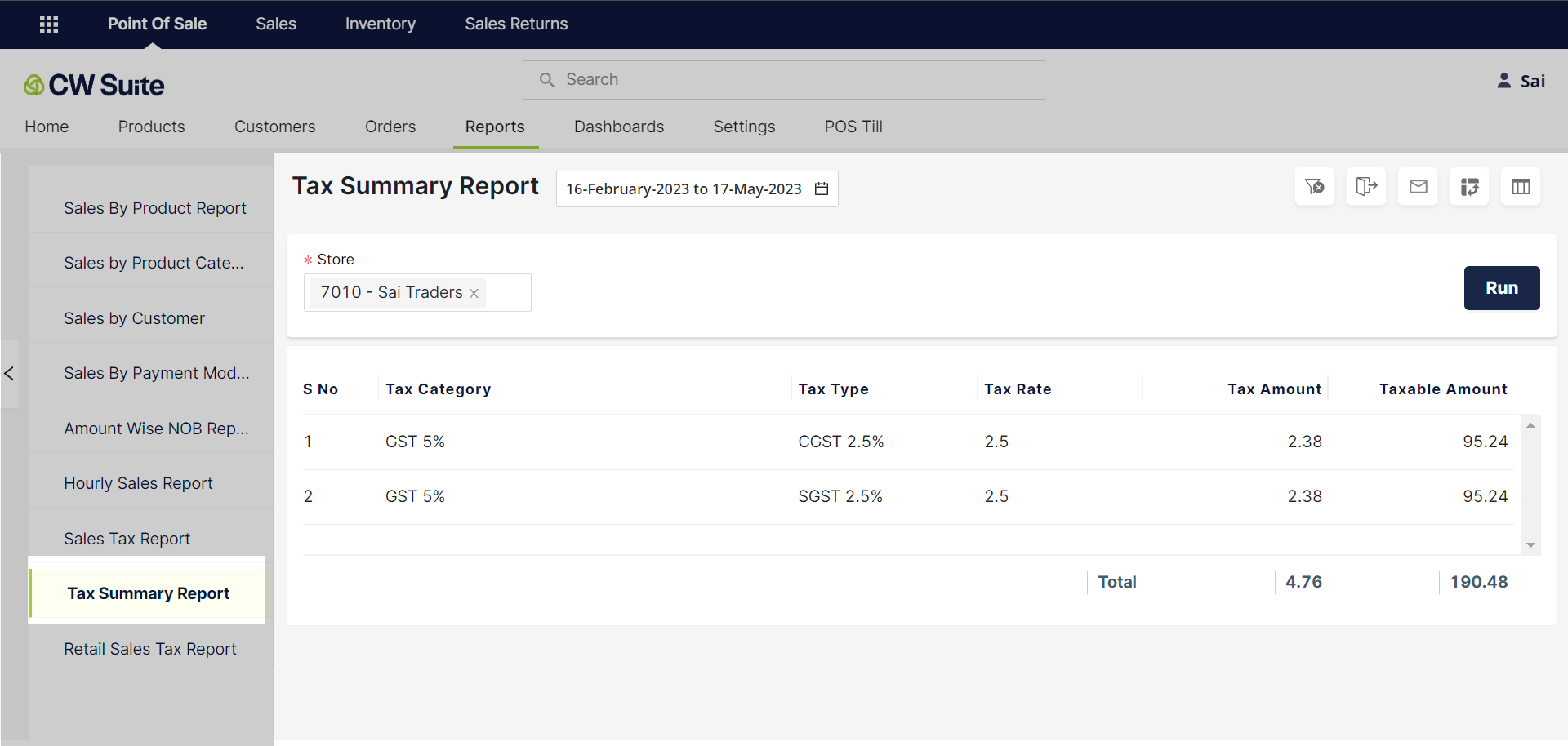
The Tax Summary Report in CW POS provides a summary of taxes collected during a specific period of time. The report includes the following columns:
* Tax Category: This column shows the category of the tax collected.
* Tax Type: This column shows the type of tax collected.
* Tax Rate: This column shows the rate at which the tax was collected.
* Tax Amount: This column shows the total amount of tax collected for each tax category and type.
* Taxable Amount: This column shows the total amount of taxable sales for each tax category and type.
The Tax Summary Report helps businesses track and analyze their tax collections and liabilities, which is important for compliance with tax regulations and accurate financial reporting.
# Retail Sales Tax Report
The Retail Sales Tax Report in CW POS with the mentioned columns would provide the following information for each date:
* No Tax: Total amount of sales that were exempt from tax.
* Base Value of 5%: Total amount of sales that were taxable at a rate of 5%.
* CGST 2.5 Amount: Total amount of Central Goods and Services Tax (CGST) at a rate of 2.5%.
* SGST 2.5 Amount: Total amount of State Goods and Services Tax (SGST) at a rate of 2.5%.
* Base Value of 12%: Total amount of sales that were taxable at a rate of 12%.
* CGST 6 Amount: Total amount of CGST at a rate of 6%.
* SGST 6 Amount: Total amount of SGST at a rate of 6%.
* Base Value of 18%: Total amount of sales that were taxable at a rate of 18%.
* CGST 9 Amount: Total amount of CGST at a rate of 9%.
* SGST 9 Amount: Total amount of SGST at a rate of 9%.
This report is helpful for businesses to keep track of their retail sales tax liability and also to reconcile their tax payments with their sales transactions.
# Dashboards
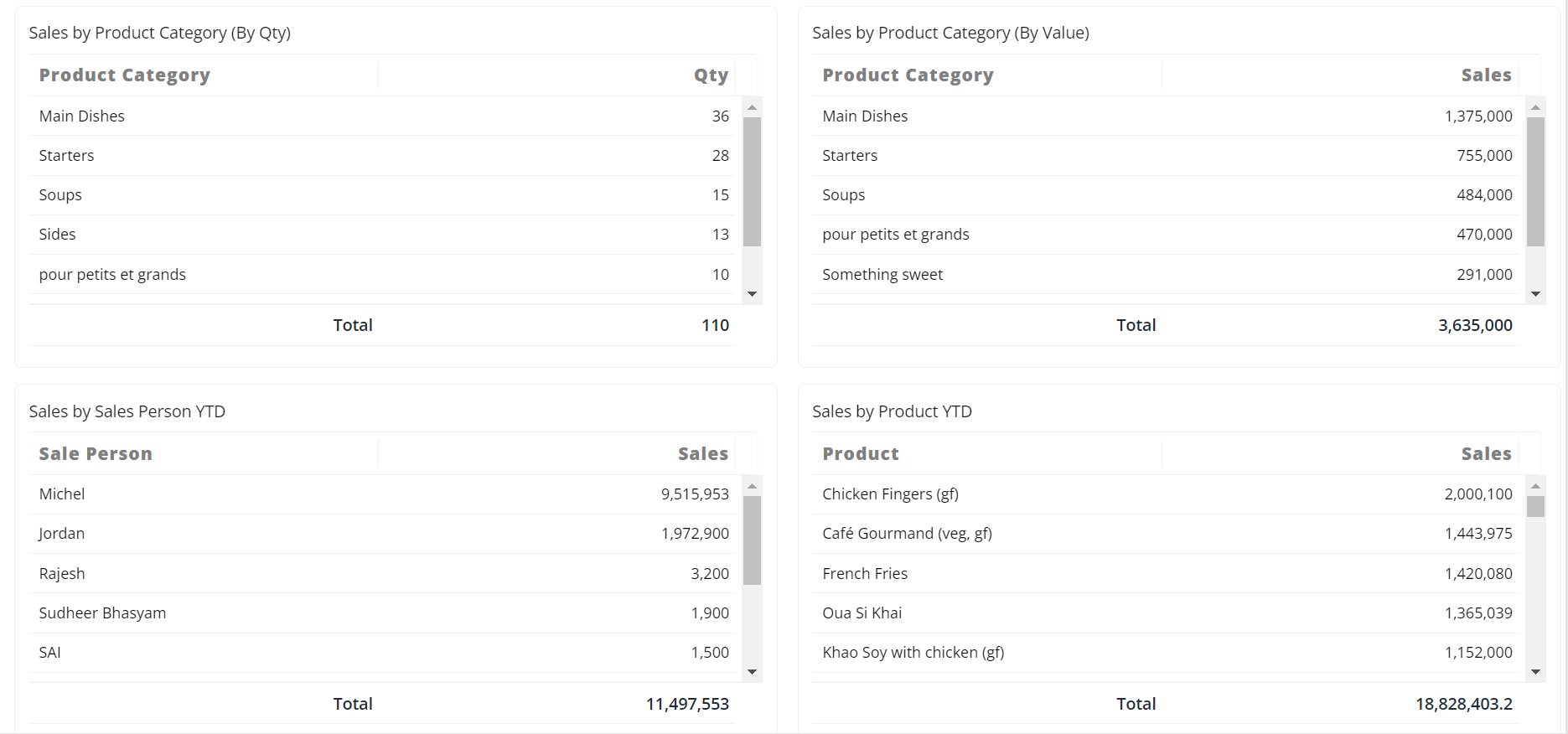
In CW POS, dashboards provide a visual representation of the business's performance and key metrics. The dashboard allows users to quickly and easily view sales data, product performance, and customer insights, giving them a comprehensive overview of their business. It helps users to identify trends and make data-driven decisions to improve business performance. Dashboards can also be customized to suit specific needs and preferences, ensuring that users have access to the information they need to manage their business effectively.
# Sales Analysis
***Introduction***
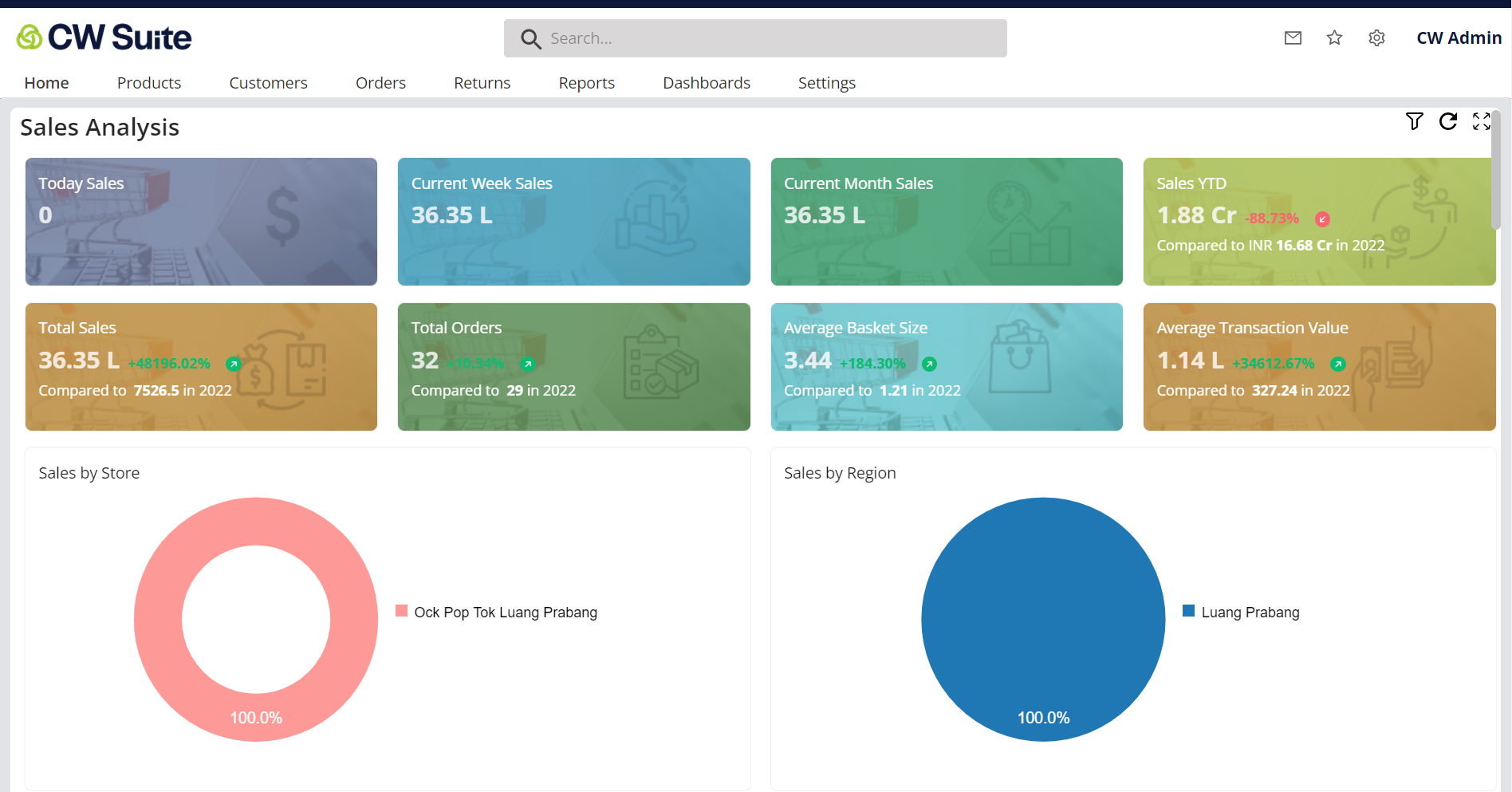
A sales analysis dashboard lets the viewers track total sales, total orders, best-selling products, etc.
**Today Sales**
This metric shows the total sales generated on the current day
**Current Week Sales**
This metric shows the total sales generated in the current week
**Current Month Sales**
This metric shows the total sales generated in the current month
**Sales YTD**
This metric shows the total sales generated year-to-date
**Total Sales**
This metric shows the overall total sales incurred
**Total Orders**
This metric shows the total number of orders placed
**Average Basket Size**
This metric shows the average number of products in each customer's order
**Average Transaction Value**
This metric shows the average value of each transaction after the sale
**Sales by Store**
This metric shows the sales breakdown by individual stores or locations
**Sales by Region**
This metric shows the sales breakdown by different Cities
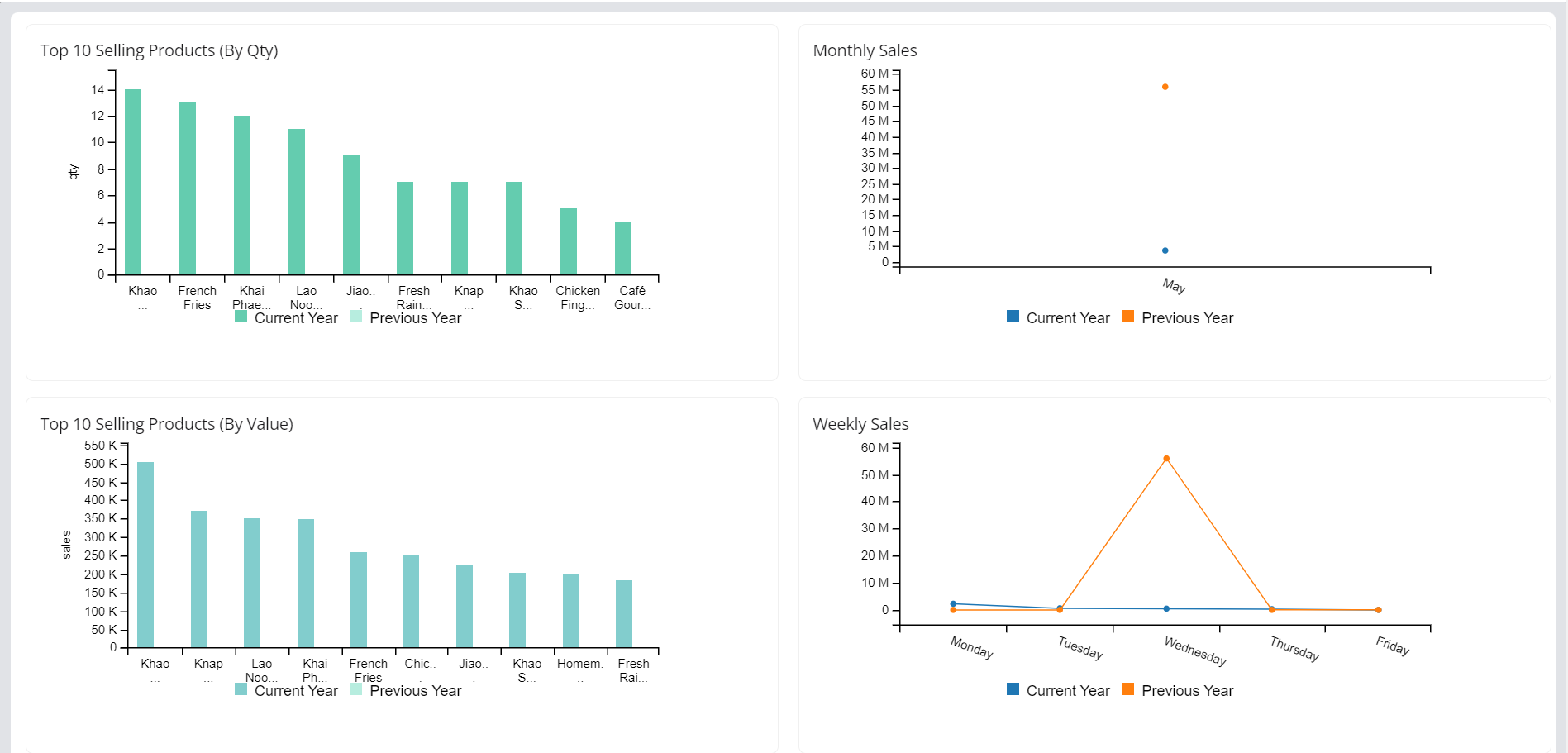
**Top 10 Selling Products (By Qty)**
This metric shows the top 10 products sold based on quantity
**Monthly Sales**
This metric shows the sales trend on a monthly basis
**Top 10 Selling Products (By Value)**
This metric shows the top 10 products sold based on their value
**Weekly Sales**
This metric shows the sales trend on a weekly basis
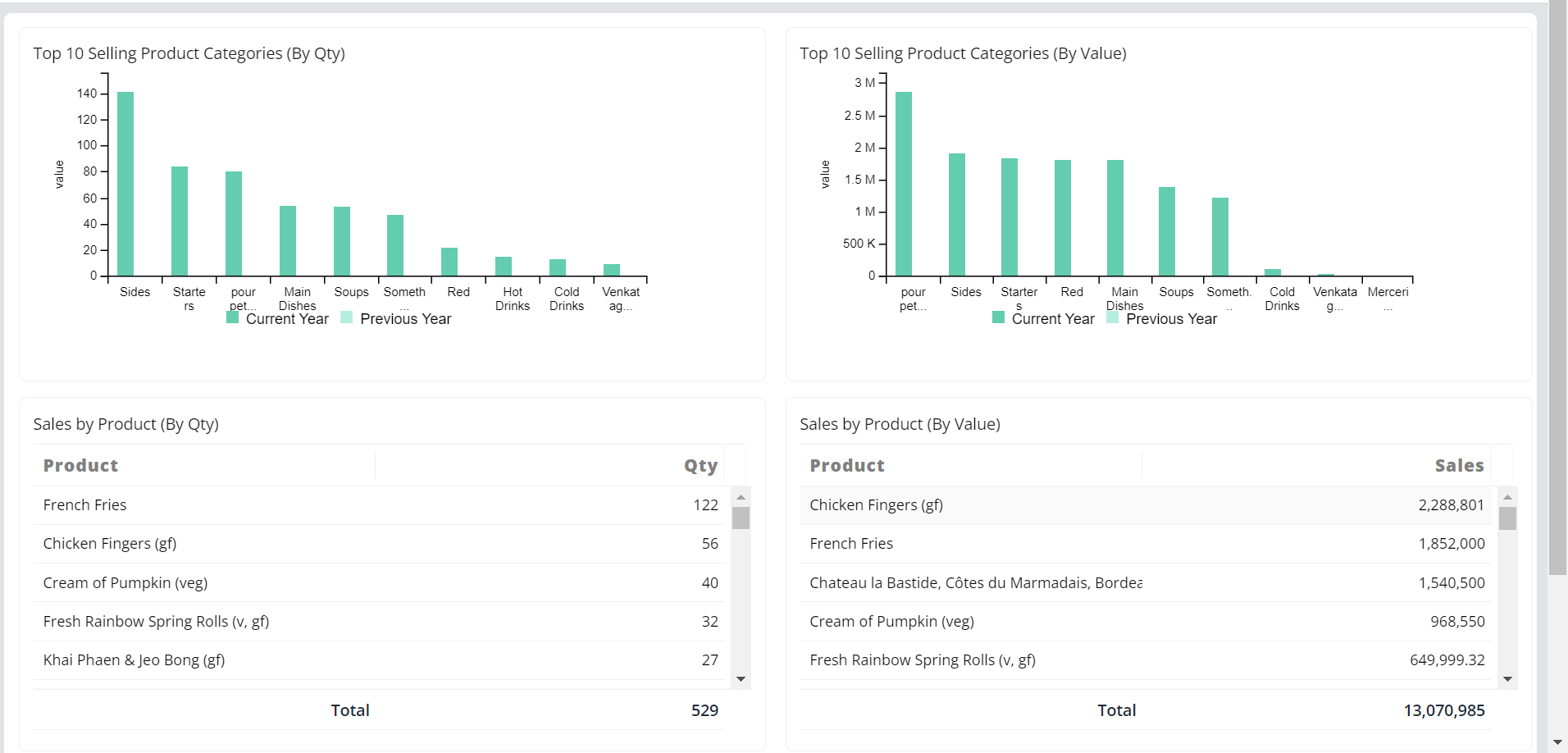
**Top 10 Selling Product Categories (By Qty)**
This metric shows the top 10 product categories sold based on quantity
**Top 10 Selling Product Categories (By Value)**
This metric shows the top 10 product categories sold based on their value
**Sales by Product (By Qty)**
This metric shows the sales breakdown for each product based on quantity
**Sales by Product (By Value)**
This metric shows the sales breakdown for each product based on their value
**Sales by Product Category (By Qty)**
This metric shows the sales breakdown for each product category based on quantity
**Sales by Product Category (By Value)**
This metric shows the sales breakdown for each product category based on their value
**Sales by Sales Person YTD**
This metric shows the sales performance of individual salespersons year-to-date
**Sales by Product YTD**
This metric shows the sales performance of individual products year-to-date
# Management Analysis
**Introduction :** Management analysis dashboard is a tool in CW POS that provides an overview of various business metrics and helps in making informed decisions. It offers insights on sales, inventory, customer behavior, employee performance, and more, with the help of charts, graphs, and data visualizations. The management analysis dashboard is designed to provide a comprehensive view of the business operations, making it easier to track progress and identify areas for improvement.
***Total Sale***
This metric shows the total sale incurred.
***Total Customers***
This metric shows the total number of customers.
***Total Loyalty Customers***
This metric shows the total number of loyal customers.
***Total Online Orders***
This metric shows total number of online orders received.
***Total Loyalty%***
This metric shows total sales % incurred through loyal customers.
***Return %***
This metric shows the percentage of products that are returned by customers.
***Total Return's***
This metric shows the total value of all returned products or orders within a specified period.
***Wastage QTY***
This metric shows the quantity of products that have been wasted or discarded due to spoilage, damage, or expiry within a specific period.
***Wastage%***
This metric shows the percentage of wasted or spoiled inventory items compared to the total number of items sold during a specific time period.
***Wastage Amount***
This metric shows the total value of products wasted or spoiled during a specific period.
***Total Expenses***
This metric shows the total amount of expenses incurred by a business within a given period. This KPI includes all expenses such as salaries, rent, utilities, marketing, and other operational costs.
***Expenses This Month***
This metric shows the total expenses incurred by the business in the current month.
***Sales By Region***
This metric is a pie chart representation of the sales performance of different regions or locations.
***Profit By Store***
This metric is a pie chart representation that displays the profitability of each store.
***Sales By Store***
This metric provides an overview of the total sales made by each store in a given period.
***Top 5 Stores (By Sales)***
This metric displays the top five performing stores based on their sales. This KPI provides a quick overview of which stores are generating the most revenue and can help identify areas for improvement or growth.
***Bottom 5 Stores (By Sales)***
This metric displays the list of stores with the lowest sales over a specified time period. This KPI can help identify stores that are underperforming and may need additional support or attention from management.
***Wastage Amount By Stores***
This metric displays the amount of waste generated by each store in the selected time period. The vertical axis represents the amount of waste in the currency unit of your choice, and the horizontal axis shows each store's name
***Store Wise Expense***
This metric displays the expenses of each store in a graphical format. It helps to identify the expenses incurred by each store and provides a visual representation of the comparative expenses among stores.
# Customer Insights
**Introduction :** The customer insights dashboard in CW POS provides an overview of customer behavior and purchasing patterns. It allows businesses to analyze customer data such as the number of new vs. returning customers, purchase frequency, average order value, and popular products. This information can help businesses make informed decisions about marketing campaigns, product offerings, and customer retention strategies. The dashboard may also include graphs and charts to visualize customer data and trends over time.
***Total Customers***
This metric shows the total number of customers.
***Repeat Customers***
This metric shows the total number of repeat or loyal customers.
***Average Sale Value for Customer***
This metric shows the average amount spent per transaction by individual customers.
***Total Online Customers***
This metric displays the number of customers who have made purchases through the online store.
***MTD Signups***
MTD Signups stands for Month-to-Date Signups. This metric measures the number of new customers who have signed up for loyalty programs during the current month.
***YTD Signups***
YTD Signups stands for Year-to-Date Signups. This metric measures the number of new customers who have signed up for loyalty programs during the current year.
***Monthly Registration Trends***
This metric displays the trend of monthly customer registrations over a given period. The chart typically shows the number of new registrations for each month in the period, with bars of different colors or shades representing each month. This KPI provides valuable insights into the growth or decline of customer registrations, which can help businesses adjust their marketing strategies and customer acquisition efforts accordingly.
***Loyalty Sales***
This metric shows the total sales amount generated by customers who have enrolled in the loyalty program. This KPI helps track the effectiveness of the loyalty program in driving sales and revenue for the business. By analyzing the trend over time, businesses can identify the impact of loyalty programs on sales and adjust their strategies accordingly to improve customer retention and loyalty.
***Sales By Payment Mode(%)***
This metric displays the percentage of sales made through different payment methods like cash & card in percentage.
***Customers By Region***
This metric displays the number of customers by region made purchases from our POS.
***Weekly Customers***
This metric displays the number of unique customers who have made a purchase in each week of the selected time period. This KPI is useful for understanding how customer traffic changes over time and can help identify trends or patterns in customer behavior.
# Customer Return Analysis
This dashboard helps businesses to analyze their customers' return behavior. With this feature, businesses can track the number of returns made by individual customers, the value of those returns, and the products that are most commonly returned. This information can help businesses identify patterns in return behavior, such as whether certain customers are more likely to return products, or if there are particular products that are more frequently returned. This can help businesses make data-driven decisions to improve their products and customer service.
***Total Return Qty***
This metric measures the total number of items returned by customers within a given time period. This KPI helps to monitor the return rate and identify any trends or issues that need to be addressed.
***Total Return Amount***
This metric measures total amount of money that was returned by customers for products they have purchased within a given time frame. It provides an overview of how much revenue was lost due to product returns and helps in identifying trends or issues related to product quality, pricing, or customer satisfaction.
***Today's Return (Qty)***
This metric displays the total number of products returned by customers on the current day. It helps the store manager or staff keep track of the daily returns and take necessary actions to minimize the return rate.
***Total Return Amount (YTD)***
This metric shows the total value of returns processed year-to-date. It helps the business to track the amount of money that has been returned by customers during the current year, which is useful for understanding the impact of returns on overall sales and profitability.
***Total Returns (YTD)***
This metric shows the total number of returns made by customers in the year-to-date period. This KPI provides insights into the trend of returns over time, allowing businesses to identify potential issues with products, services, or customer experiences.
***Return %***
This metric shows the percentage of items sold that have been returned by customers. This KPI can provide insights into the overall satisfaction of customers with the products or services offered by the business. A high percentage of returns could indicate issues with the quality of the products, poor customer service, or other problems that need to be addressed.
***Returns By Product***
This metric shows the quantity of returns for each product or item that has been returned by customers over a specific period.
***Return By Product Category***
This metric shows the quantity of returns for each product category that has been returned by customers over a specific period.
***Month Wise Returns***
This metric shows the total number of returns made by customers each month. It helps to track the trend in customer returns and identify any seasonal patterns in returns.
***Top Sales Return by Store***
This metric shows the top-performing stores in terms of sales returns. It provides information on the stores that have the highest amount of sales returns and helps the business identify any potential issues with products or services.
# Customers
In a POS system, a retail customer is a person or business that purchases goods or services from a store. The POS system records details of each transaction made by the customer, including the products purchased, payment method, and other relevant information. Our POS system offers features such as customer data management, loyalty programs, and targeted marketing tools to help retailers improve customer engagement and retention.
# Retail Customer
A retail customer is a person or business that purchases goods or services from a store.
Here we can view the customers who have made transactions from store.
* Click on Retail Customer button.
* This will display the list of customers.
* To view the details of a specific customer, click on their name from the list.
* We can view the loyalty transactions of a customer in the Loyalty Transactions section.
# Products
Products in the POS application often refers to the goods or services that a business is selling. Organizations can manage and organize information about their items, including names, descriptions, prices. When making decisions about price and POS strategy, this data is used to assist POS operations.
# Product
To add a new Product to the products list, you can follow these steps.
* Start by clicking on Products in the menu. Afterward, click the Products Button.
* To add a new product, click on the Add New button.
* It is necessary to fill in the mandatory fields marked with an asterisk (\*). Once the required information is filled in, the remaining fields that are required can be completed.
* After all the necessary information has been entered, click on the Save button to save the product information and store it in the system.
# Product Catalogue
To add a new Product Catalogue, follow these steps
* Go to the Product Catalogue section by clicking on the Product Catalogue button located on the left side menu.
* Click on Add New button to access the interface for adding a new product catalogue.
* To add new product catalogue, fill in all the mandatory and required fields marked with an asterisk (\*).
* After entering all the necessary information, click on the Save button to store the new product catalogue in the system.
* To link products, simply select the desired products from the available list and add them to the product catalogue lines.
* This process helps to ensure that all relevant information about your products is accessible and organized in the product catalogue.
# Product Category
## From Product Category Window
To add a new Product Category, follow these steps
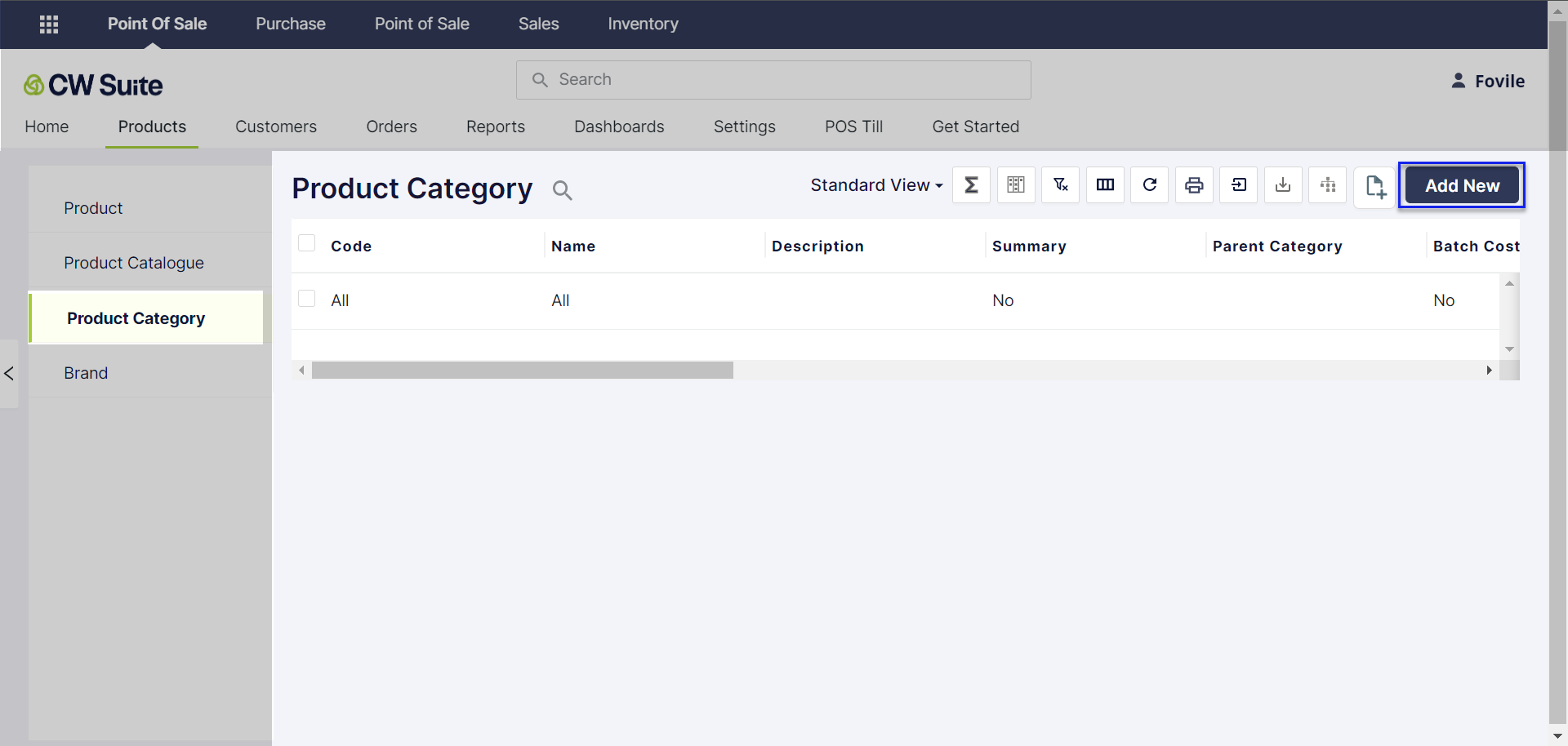
* Click on the Product Category button located on the left side menu.
* Click the Add New button to access the interface for adding a new product category.
* This process allows you to organize your products into categories and easily manage your product information.
* To save a new product category, fill in all the mandatory fields marked with an asterisk (\*), as well as any additional required fields. Once all the necessary information has been entered, click on the Save button to store the new product category in the system
## From Product Window
While creating a product in the Products window, you can easily create a new product category by following these steps:
Click on the Product Category dropdown menu.
Select the option to Add New Product Category
When you click on the + Add New Product Category button, a new window will open. To save the new product category, fill in all the mandatory and required fields. Once all the necessary information has been entered, click on the Save button to store the new product category in the system
# Brand
To add a new Brand, follow these steps
* To add brand, you need to provide a code and name for the brand, and then click on the Save button.
* This will save the newly created brand information
# Getting set up
# POS Settings
The POS settings screen is where you can enable and configure various features that are essential for your business like, discounts, payment methods, customer search, cash register, taxes, sales types, and more. It is a centralized hub that allows you to customize and optimize your POS system according to your business needs, making it more efficient and effective.
# Payment Method
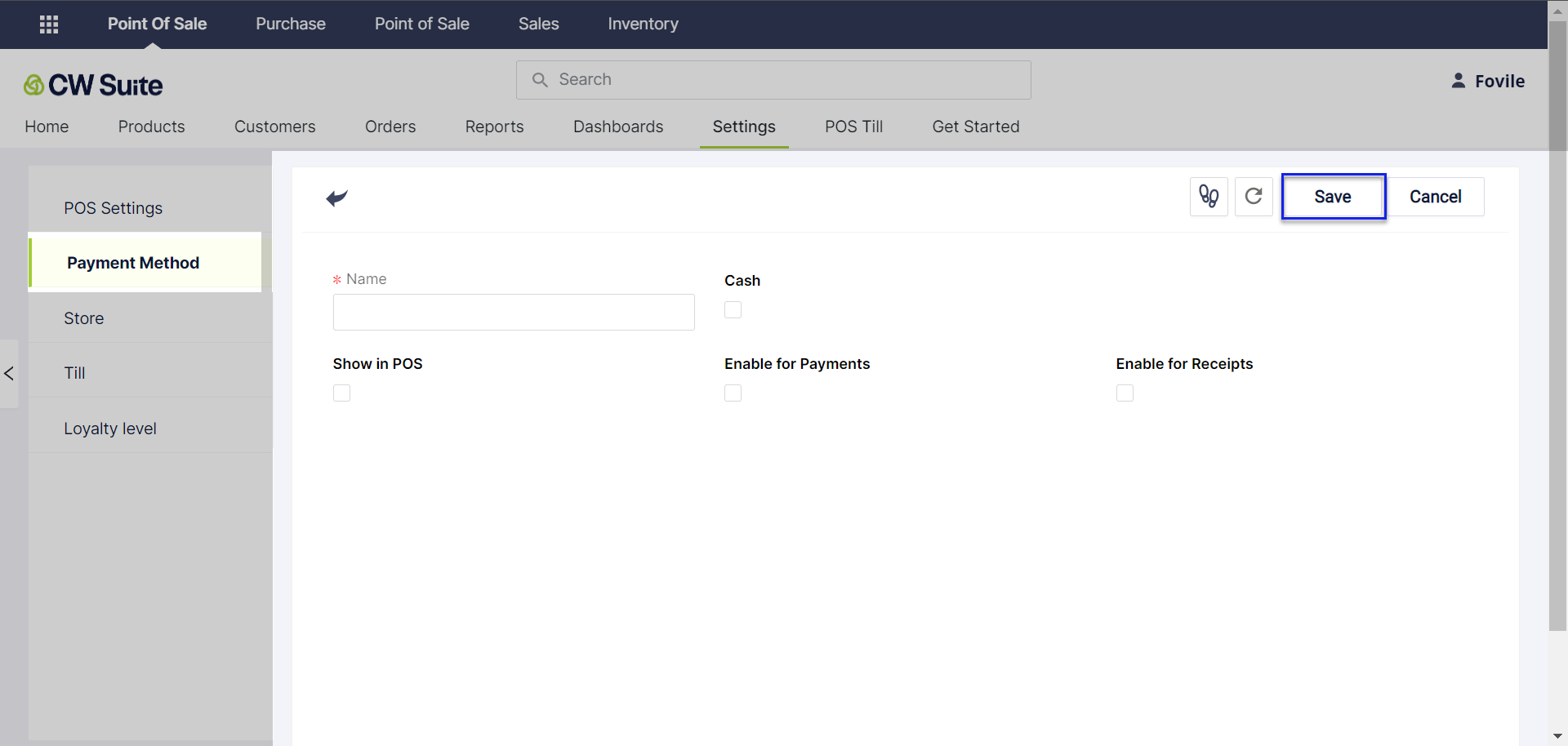
Payment Method is a feature in a POS system that allows customers to make transactions using different payment options. Cash and card are two of the most common payment methods used in a POS system. The cash payment method allows customers to pay for their purchase in cash while the card payment method enables them to use credit or debit cards for payment. These payment methods can be easily configured and enabled in the POS system settings to provide customers with a seamless payment experience.
# Store
In CW POS, a store represents a physical location where your business operates. It could be a retail store, restaurant, or any other type of business establishment. Each store can have its own set of inventory, sales transactions, and employees.
When you create a store in CW POS, you can define its name, address, contact information, and other relevant details. This allows you to keep track of your business operations at each location separately.
You can also assign tills, employees, and products to each store, allowing you to manage your inventory and sales efficiently. With the ability to create and manage multiple stores in CW POS, you can easily scale your business and expand to new locations.
# Till
In CW POS, Till refers to the physical cash register or point of sale terminal used to conduct transactions with customers. Each store can have multiple tills assigned to it, and each till can be assigned with its own users. Till is also used to track cash transactions and reconcile cash at the end of each day or each shift. This allows efficient management of cash flow and can help prevent errors or discrepancies in cash handling.
# Loyalty Level
Loyalty level in CW POS refers to a customer loyalty program that can be customized and set up to reward customers based on their purchase behavior. By using this feature, businesses can offer incentives such as discounts, free products, or exclusive offers to customers who reach certain loyalty levels based on their spending and purchasing frequency. This can help encourage repeat business and build customer loyalty, which can ultimately lead to increased revenue and a better customer experience. The loyalty level feature can be configured and managed within the POS system.
# For Designers
{% hint style="info" %}
**Good to know:** depending on the product you're building, it can be useful to explicitly document use cases. Got a product that can be used by a bunch of people in different ways? Maybe consider splitting it out!
{% endhint %}
## Figma Integrations
{% tabs %}
{% tab title="Installing" %}
{% embed url="" %}
{% endtab %}
{% tab title="Configuring" %}
Maecenas faucibus mollis interdum. Donec id elit non mi porta gravida at eget metus. Donec ullamcorper nulla non metus auctor fringilla. Donec sed odio dui. Donec ullamcorper nulla non metus auctor fringilla.
{% endtab %}
{% tab title="Customizing" %}
{% endtab %}
{% endtabs %}
# For Developers
{% hint style="info" %}
**Good to know:** depending on the product you're building, it can be useful to explicitly document use cases. Got a product that can be used by a bunch of people in different ways? Maybe consider splitting it out!
{% endhint %}
## GitHub Integrations
Cras mattis consectetur purus sit amet fermentum. Praesent commodo cursus magna, vel scelerisque nisl consectetur et.
{% tabs %}
{% tab title="Installing" %}
Sed posuere consectetur est at lobortis. Integer posuere erat a ante venenatis dapibus posuere velit aliquet. Aenean lacinia bibendum nulla sed consectetur. Maecenas sed diam eget risus varius blandit sit amet non magna.
```
string | ComponentClass | FunctionComponent
```
{% endtab %}
{% tab title="Second tab" %}
Maecenas faucibus mollis interdum. Donec id elit non mi porta gravida at eget metus. Donec ullamcorper nulla non metus auctor fringilla. Donec sed odio dui. Donec ullamcorper nulla non metus auctor fringilla.
{% endtab %}
{% endtabs %}